
Play Harmonium on Laptop: a 30-second setup
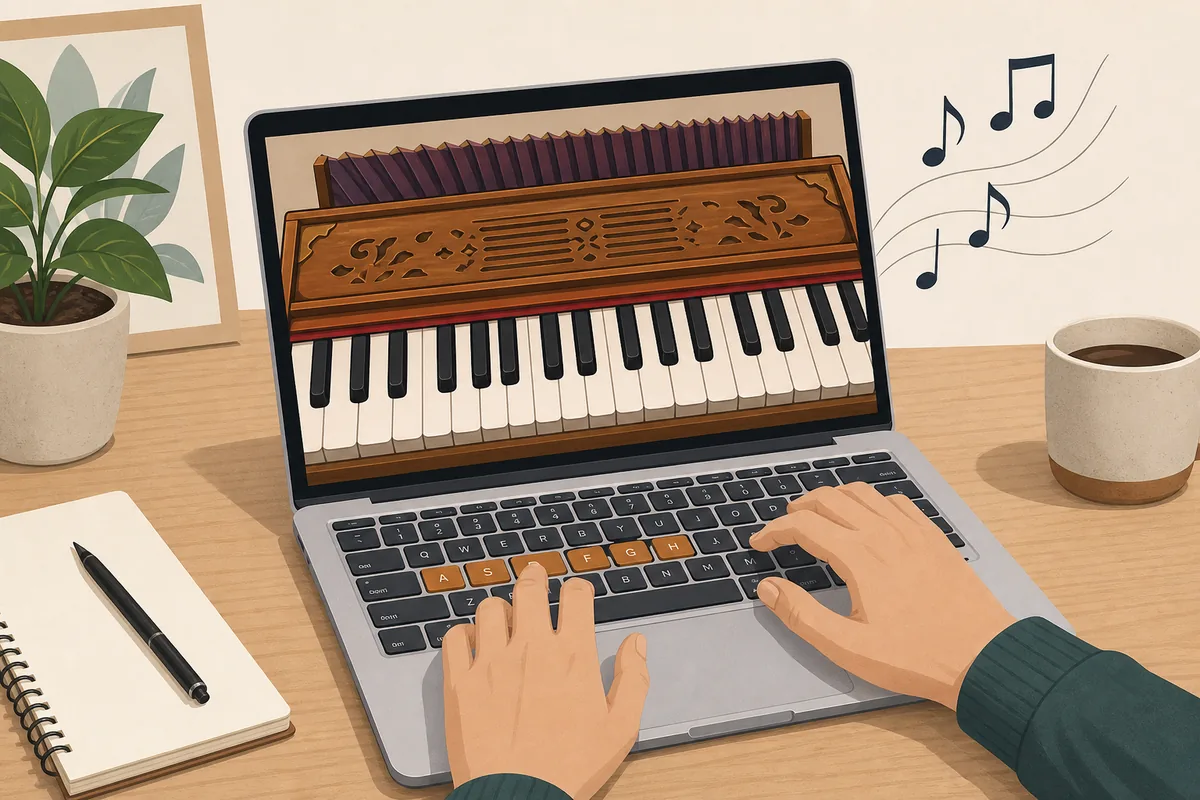
Open the online harmonium keyboard, click one visible key to unlock browser audio, set volume low, then use nearby laptop keys for a small Sa Re Ga Ma pattern. You do not need a separate harmonium app for the first practice session.
For beginners, treat the laptop as a pitch and note-order helper. It can make sargam repetition easy at a desk, but it cannot teach bellows pressure, acoustic response, or the physical resistance of a real harmonium.
A laptop harmonium session is easier when you confirm sound first. Choose a comfortable octave, keep reverb light, and repeat a four-note phrase until your hand and ear agree on the note direction.
If a song tutorial uses a different root, write down the chosen Sa before practicing. The same letters can sound different when the starting pitch changes.
| Step | What to do | Why it matters |
|---|---|---|
| 1 | Open Web Harmonium in a modern browser | The instrument runs directly in the page, so there is no installer or account step. |
| 2 | Click or tap one key | Most browsers block audio until you interact with the page. |
| 3 | Use laptop keys for a short pattern | QWERTY input is faster than mouse clicks for repeated drills. |
| 4 | Adjust transpose only after the pattern is clear | Pitch changes should support the singer, not hide uncertain notes. |
Do you need a harmonium app, emulator, or VST?
For pitch checks, note order, or a short bhajan line, a browser laptop harmonium is usually enough. You can practice without an installer, account, or plugin.
A desktop app or VST makes more sense for recording, DAW routing, layered samples, or offline work. That is a different job from opening a quick practice page.
| Need | Best option | Reason |
|---|---|---|
| Fast note checking | Browser laptop harmonium | No download and no setup delay. |
| Daily sargam drills | Browser plus QWERTY keys | Short repeated patterns are easy from the keyboard. |
| Recording production | DAW or VST | You may need track routing, automation, and export control. |
| Bellows technique | Physical harmonium | Air pressure and hand feel cannot be learned from laptop keys. |
Laptop harmonium key map for QWERTY practice
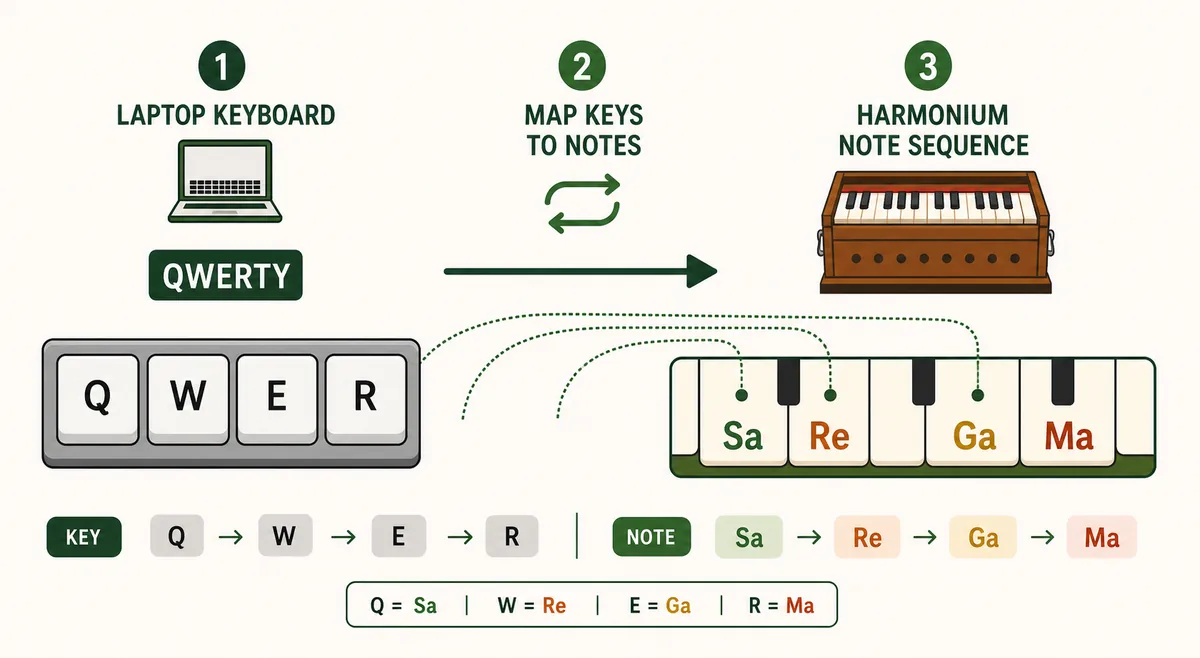
The laptop keyboard should be a control surface, not your musical notation. On Web Harmonium, the visible computer-key labels place a practical white-key run around the center row. For a simple C-as-Sa starter drill, use the nearby keys as a repeatable path and say the note names aloud.
Do not memorize QWERTY letters as if they were music notes. Write Sa, Re, Ga, Ma or C, D, E, F in your notebook, then use the laptop keys only to trigger the sound quickly.
| Laptop key | Displayed note area | Sargam role when C is Sa | Practice cue |
|---|---|---|---|
| e | C | Sa | Hold it as the home note before moving. |
| r | D | Re | Move one step upward and return to Sa. |
| t | E | Ga | Use Sa Re Ga for a three-note warm-up. |
| y | F | Ma | Turn around here for Sa Re Ga Ma Ga Re Sa. |
| u | G | Pa | Add after the first four notes are steady. |
| i / o / p | A / B / upper C | Dha / Ni / upper Sa | Complete the octave only after the lower notes are clean. |
Play harmonium on laptop: screen keys, QWERTY, or MIDI
Use screen keys to find notes, QWERTY for short repeated patterns, and MIDI for more natural spacing or two-hand practice.
A QWERTY shortcut is a layout control, not a music note. Keep the visible harmonium note or sargam role as your musical reference.
For a first session, open the online harmonium keyboard and click visible keys before learning shortcuts. This confirms sound, note direction, and octave.
Move to QWERTY after one phrase is familiar. Choose MIDI only when the browser detects it reliably and the hardware makes practice clearer.
| Input method | Best for | Main limitation |
|---|---|---|
| On-screen keys | Finding notes, touch devices, checking the octave | Slower for repeated phrases and wide intervals |
| Laptop QWERTY | Short sargam loops, rhythm drills, no-download practice | Shortcuts are not universal music notation |
| MIDI keyboard | Two-hand spacing, longer practice, physical key control | Needs permission, cable, and reliable detection |
A 10-minute laptop harmonium practice routine
Laptop practice works best with one small goal: repeat a scale fragment, check the root, and stop before your hand starts guessing.
Keep the speaker volume moderate so thin laptop speakers do not hide pitch errors or make sudden notes uncomfortable.
-
1
Minute 1: unlock audio and set volume
Click one key, then set volume low enough that mistakes are easy to hear without becoming harsh.
-
2
Minutes 2-3: find Sa
Use C as a starter Sa for chart practice, or transpose until the root matches the singer or recording.
-
3
Minutes 4-6: repeat Sa Re Ga Ma
Use the mapped laptop keys slowly. Say each note name before you press the next key.
-
4
Minutes 7-8: reverse the phrase
Practice Ma Ga Re Sa so descending motion becomes as familiar as ascending motion.
-
5
Minutes 9-10: test one song fragment
Choose one short phrase from a song or lesson and check whether the written notes match the chosen Sa.
Using a MIDI keyboard with a laptop harmonium
If your laptop browser supports Web MIDI, a connected MIDI keyboard can make online harmonium practice feel more natural than QWERTY keys. You still hear the browser instrument, but your fingers use a familiar piano-style layout.
MIDI support depends on the browser, operating system, device permissions, and cable connection. If the input list is empty, reconnect the device, allow MIDI access when the browser asks, and refresh the device list before assuming the harmonium page is broken.
| Setup | When it helps | Limit |
|---|---|---|
| Laptop only | Quick note checks and short drills | Small keys and typing layout can feel cramped. |
| Laptop plus MIDI keyboard | Longer practice and smoother fingering | Needs browser and device support. |
| Physical harmonium | Bellows, touch, accompaniment, performance | Not always nearby for quick checks. |
- MDN: Web MIDI API - browser API background for MIDI device access and permission behavior.
Troubleshooting laptop harmonium sound and key input
If the laptop harmonium makes no sound, first click or tap the page once. Browser audio often stays silent until there is a user gesture. Then check system volume, tab mute state, headphones, and whether another audio device is selected.
If QWERTY keys fail, focus the page, click the keyboard once, and avoid typing in another field. Test an on-screen key before diagnosing MIDI; that separates audio problems from device-permission problems.
Safety note: start at low volume, especially with headphones or external speakers. Browser audio can be louder than expected when a device or tab setting changes.
Laptop harmonium or app: choose by the practice task
The right choice depends on what you need next. A browser laptop harmonium is quickest for a note check, a short song phrase, or a no-download practice session. A native app can be useful when you need offline access, recording, or a deeper sound library.
Use the harmonium app comparison for the broader device decision, then return to the online harmonium keyboard when you want to test one phrase immediately.
| Option | Best for | Tradeoff |
|---|---|---|
| Laptop harmonium in browser | Fast note checks, QWERTY, no download | Browser audio and device limits still apply |
| Harmonium laptop app | Offline use or a larger sound library | Installation and storage add friction |
| MIDI with laptop harmonium | More natural key spacing | Browser and device permissions are required |
What to learn after laptop harmonium basics
After laptop basics, learn a note chart, practice one song phrase, and understand why Sa can move for different singers.
Use the beginner notes guide for a chart, the Hindi song notes guide for phrase interpretation, and the English-key guide for C, D, and E mapping.
Laptop harmonium FAQ
Can I play harmonium on a laptop without downloading an app?
Yes. Web Harmonium runs in the browser, so you can open the page, click a key to unlock audio, and practice with mouse, touch, QWERTY keys, or a supported MIDI keyboard.
Which laptop keys should I use for harmonium practice?
Use the visible QWERTY labels on the online keyboard. For a beginner C-as-Sa drill, the center run around e, r, t, y, u, i, o, and p is useful for Sa Re Ga Ma Pa Dha Ni Sa practice.
Is a laptop harmonium the same as a real harmonium?
No. A laptop harmonium can help with pitch, note order, transpose, and short drills, but it cannot teach bellows pressure, acoustic touch, or physical accompaniment technique.
Can I use this as a harmonium for PC?
Yes. The same browser page works as a PC harmonium when you use a modern desktop browser. You do not need a separate emulator for basic practice.
Why does the sound not start immediately?
Many browsers block audio until you interact with the page. Click or tap one key, then check volume, tab mute, and device output settings.
Should I use QWERTY keys or a MIDI keyboard?
Use QWERTY keys for quick checks and short drills. Use MIDI when you want a more realistic key layout and your browser exposes the device correctly.
Can I play the harmonium using only the laptop screen?
Yes. Use the on-screen keys with a mouse, trackpad, or touch display. They are best for finding notes; QWERTY or MIDI is usually faster for repeated phrases.
Is a laptop harmonium the same as a harmonium app?
No. A laptop harmonium in the browser is faster to open and useful for QWERTY, MIDI, pitch checks, and short practice. An app may offer offline access or extra sounds, but it requires installation and may use a different control flow.
Open the laptop harmonium and test one phrase
Open the laptop harmonium, test one four-note phrase, and choose QWERTY or MIDI only after browser audio is working.
Open the online harmonium